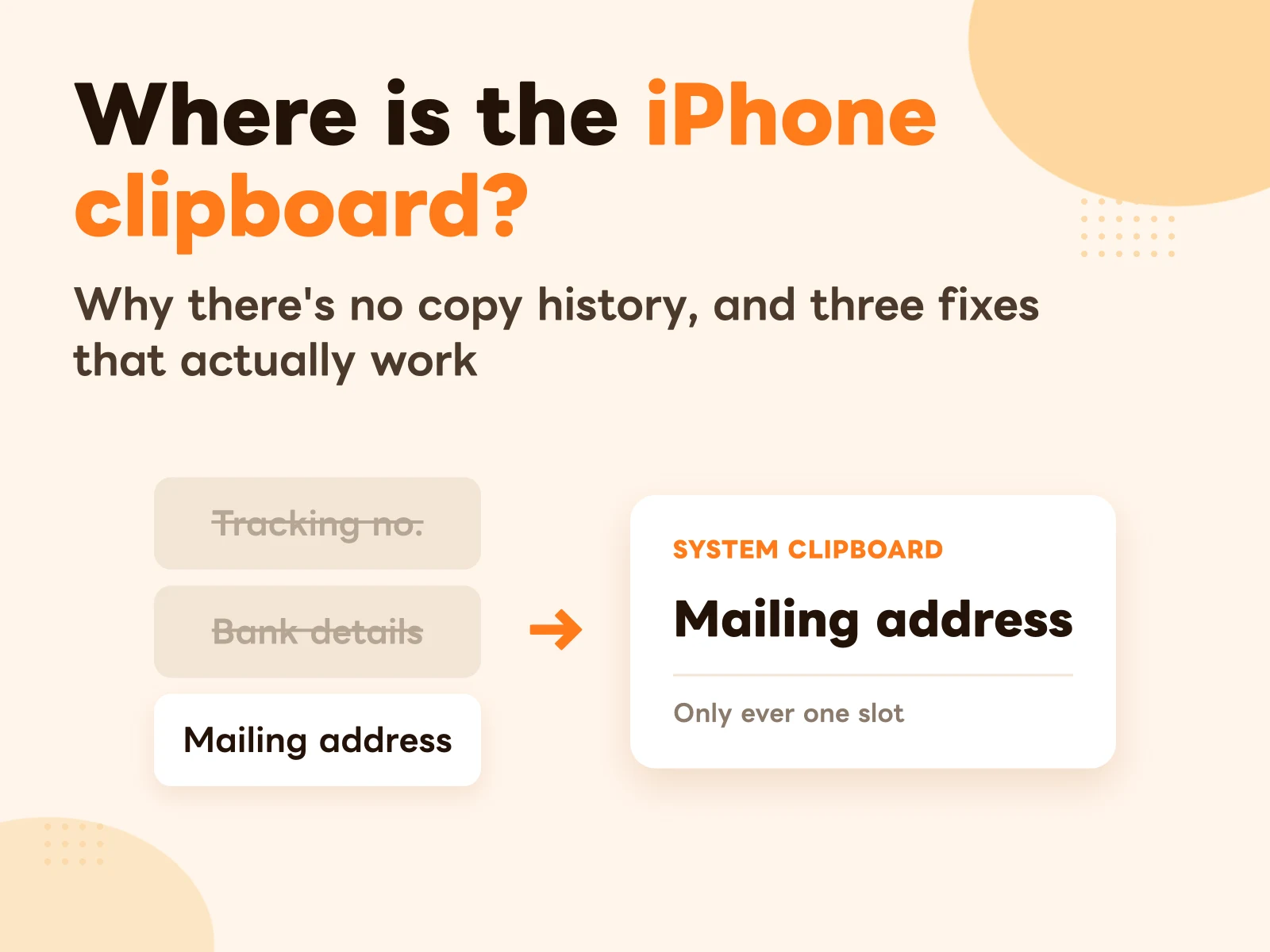
Here’s the answer up front, so you can skip ten minutes of searching: there is no Clipboard app on iPhone, and no screen anywhere that shows what you’ve copied.
The system clipboard holds exactly one item. Whatever you copied last lives there, and the moment you copy something else, the previous item is gone with no way to bring it back.
You didn’t fail to find it. It doesn’t exist.
This post covers why Apple built it that way (the reason is more interesting than “they never got around to it”), three workarounds that genuinely work, and one distinction most people get wrong: you think you’re looking for history, but nine times out of ten you want something else entirely.
What “one slot” actually means
Say you’re working through an order and you copy three things in a row:
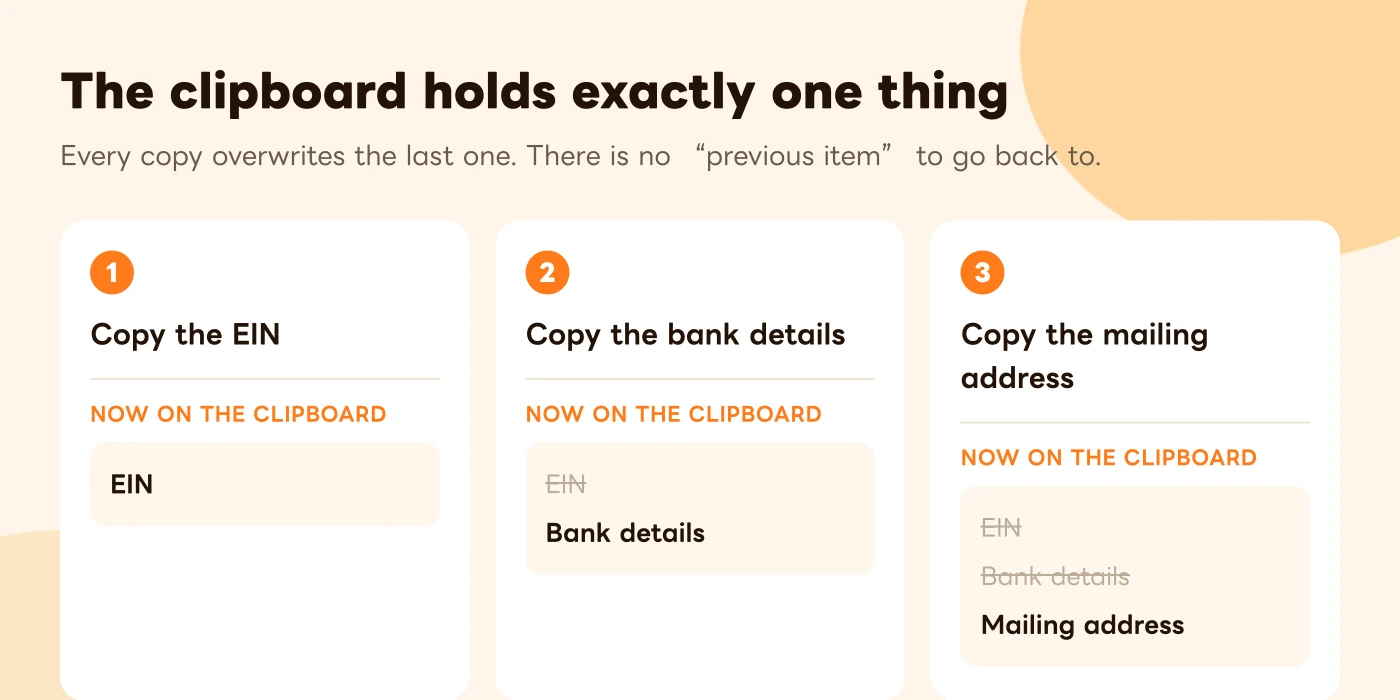
By step three, the EIN and the bank details no longer exist anywhere on the device. To paste the EIN again you have to go back to wherever it came from, find it, select it and copy it again.
A couple of times a day, fine. If you’re someone who pastes the same handful of details a dozen times a day — support, sales, bookkeeping, anyone running orders — it grinds.
So how do you check what’s on the clipboard?
There’s exactly one way: paste it somewhere and look at it.
Open Notes → new note → long-press an empty area → Paste
There’s no faster route. iOS doesn’t offer a clipboard preview, so looking and pasting are the same action.
While we’re here: people also ask how to clear the clipboard. There’s no clear button either. In practice you copy a blank space or any junk character to overwrite it. After copying a password, that’s the most direct way to feel better about it.
Why Apple doesn’t give you history
The answer isn’t that Apple forgot. Clipboard history is something Apple has deliberately left out and locked down further every couple of releases.
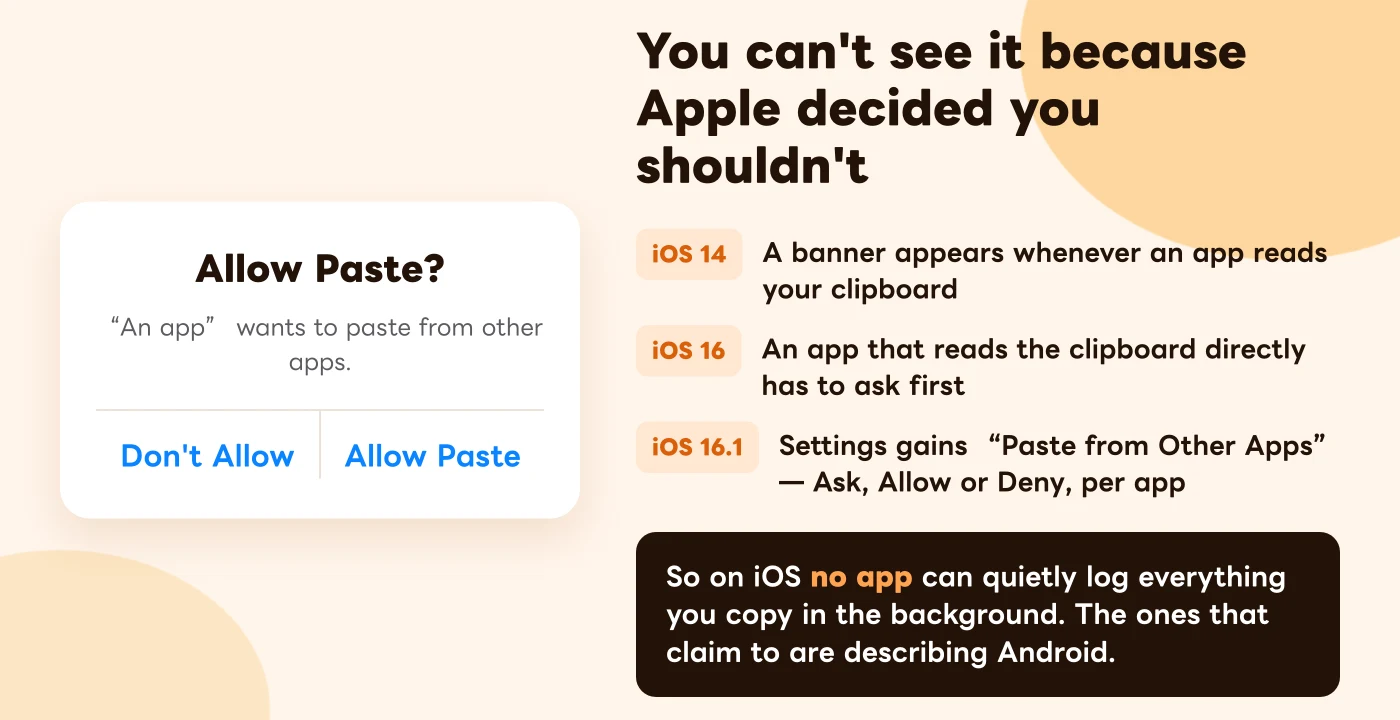
The reasoning is practical. The clipboard is the one place on the whole phone that every app can read. And what people put there is exactly the stuff that shouldn’t leak: verification codes, passwords, account numbers, addresses, card details.
So iOS kept raising the cost. First a banner whenever an app read your clipboard. Then a permission prompt before an app could read it directly. Then a Settings entry, “Paste from Other Apps”, where you can set a specific app to Deny forever.
Which leads to a conclusion a lot of articles get wrong:
There is no iOS app that quietly records everything you copy in the background. The OS blocks it below the app layer. It isn’t that developers haven’t tried.
When you see “automatically saves everything you copy” in a search result, it’s usually describing Android, or describing the one item that app read at the moment you opened it. Worth settling now, because it determines the ceiling on all three methods below.
Fix 1: Notes (no setup, needs discipline)
The crudest and most reliable option: after you copy something, paste it into one fixed note.
- Upside: nothing to install, nothing to configure, syncs across iPhone / iPad / Mac, and it’s searchable
- Cost: you have to remember. And it’s an unsorted running log, so a week in you won’t want to scroll it
Good if you occasionally need to park a piece of text. If you’re already keeping your go-to phrases in Notes, how to paste your go-to text fast without living in Notes covers exactly when that habit starts to break.
Fix 2: Build your own clipboard log with Shortcuts
This is the best of the free options, and nobody writes it up honestly.
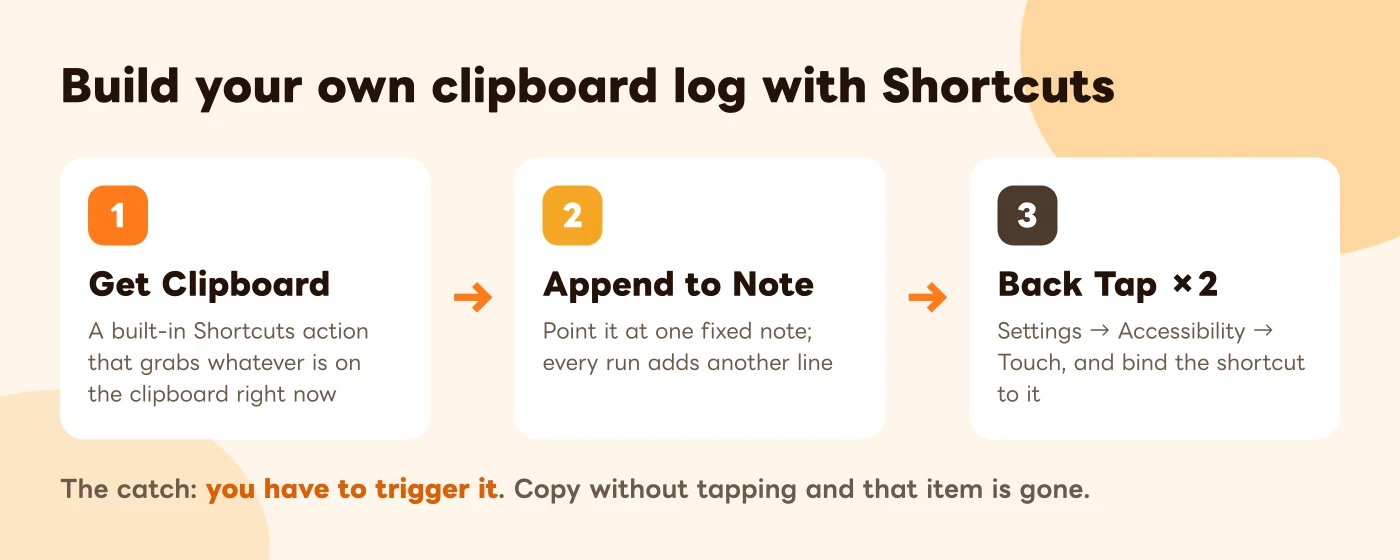
How to build it:
- Open Shortcuts and create a new shortcut
- Add the action Get Clipboard
- Add the action Append to Note and point it at one note you’ll always use (call it “Clipboard”)
- Save it and give it a name
That’s already usable: copy something, run the shortcut, and the item gets appended to the note.
To make it quick, bind it to a gesture:
Settings → Accessibility → Touch → Back Tap → Double Tap → pick your shortcut
If your iPhone has an Action button, that works too. From then on: copy → tap the back of the phone twice → it’s in the note.
The ceiling follows directly from the system limit above: a shortcut never runs on its own. You have to trigger it after copying. Forget the tap and that item is gone. It isn’t auto-recording, it’s one-tap saving.
That distinction matters, because it decides what this is good for: things you know you’ll need in a minute. It won’t rescue the URL you overwrote three hours ago.
Fix 3: Third-party apps, and how they actually work
There are plenty of clipboard apps on the App Store. Before installing one, know what it can actually do on iOS:
- It can only read the clipboard while you have it in the foreground. That’s why so many of them tell you to “switch over right after copying”
- Some use a keyboard extension instead: when you bring up their keyboard inside another app, it reads the clipboard then. The price is granting Allow Full Access
- Neither one is background recording. They just differ in when the read happens
If you have the same problem on Mac, that ecosystem is far more mature — the best clipboard tools for Mac compares Raycast, Paste and CopyNow. macOS has none of these restrictions, so real clipboard history is genuinely possible there.
The three ceilings, side by side
| Notes | Shortcuts | Third-party app | |
|---|---|---|---|
| Setup | None | Five minutes | Install + permissions |
| Records automatically | No | No, you trigger it | No, needs foreground or its keyboard |
| Searchable | Yes | Yes | Usually |
| Categories | Folders, very coarse | None | Depends on the app |
| Cross-device | iCloud | iCloud (it’s a note) | Depends on the app |
| Privacy cost | None | None | Depends what it asks for |
Every column says No under “records automatically”. That’s not a coincidence and it’s not three bad options. It cannot be done on iOS. Any article telling you otherwise can be skipped.
First, separate history from the things you reuse
Worth stopping here to ask one question.
People search for the iPhone clipboard for one of two reasons, and those two reasons want completely different tools:
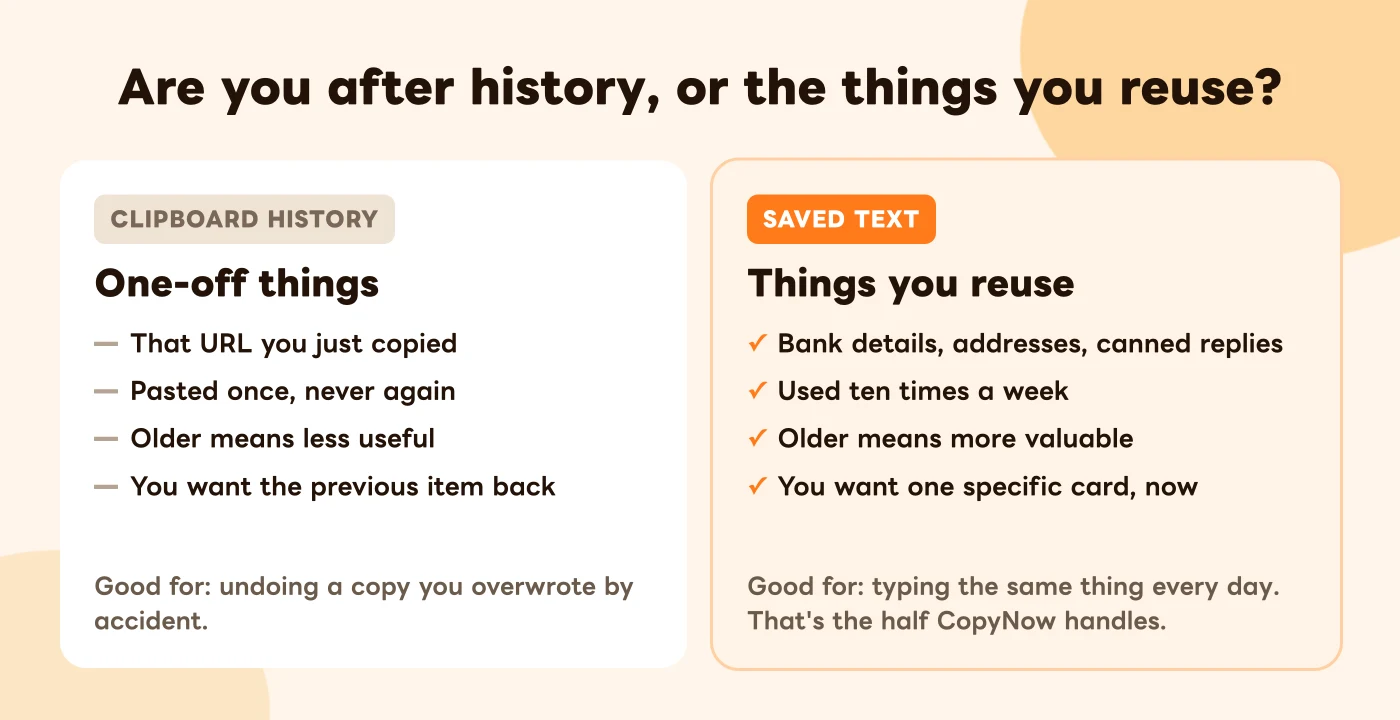
If you want the left column — “I just overwrote that URL, get it back” — honestly, there’s no good answer on iPhone. The shortcut above is the closest, and it only saves the items you remembered to tap for.
If you want the right column, you’re looking for the wrong thing. You don’t want history, you want a visible, sortable list you can copy from with one tap. History is a timestamped log, and your bank details don’t get harder to use because you saved them three months ago.
The test is simple: if you’ve copied the same piece of text three times this month, it doesn’t belong in history. It belongs in a list.
That’s also the problem iPhone’s built-in Text Replacement solves, from the other direction: it asks you to memorise a shortcode, which works for short single-line things you can type from memory. Once the content gets longer, gets line breaks, or there’s more of it than you can hold in your head, memory is the part that fails first.
Common questions
Can I use what I copied on my iPhone over on my Mac? Yes, that’s Universal Clipboard. Same Apple ID, Bluetooth and Wi-Fi on for both devices, Handoff enabled. Copy on iPhone, paste on Mac. But it’s still the same single slot, and there’s still no history.
Does restarting clear the clipboard? Don’t rely on it. After copying something sensitive, overwriting it by copying something else is still the dependable move.
What’s the clipboard button on my keyboard, then? Some third-party keyboards (Gboard, for instance) keep their own clipboard. That’s the keyboard’s own store, not the iOS system clipboard. Switch keyboards and it’s gone, and it needs Allow Full Access.
Can third-party apps snoop on what I copy? Since iOS 16, an app that reads the clipboard directly always has to ask. You can review this per app under Settings → Privacy & Security, and set any of them to Deny permanently.
So what should you actually do
Split the problem in two and both halves get easier:
One-off items: use Shortcuts. Five minutes to set up Get Clipboard → Append to Note, bound to Back Tap. From then on, when you hit something you’ll want in a minute, two taps and it’s saved.
Things you reuse: stop letting them live on the clipboard at all. Bank details, mailing address, EIN, canned replies, your email signature — what these have in common is that the content doesn’t change and you’ll paste each of them hundreds more times. They deserve a list of their own.
That’s what CopyNow does: your go-to text saved as cards, sorted into categories, synced across iPhone, iPad and Mac over iCloud. Open it, see everything, tap once to copy, memorise nothing. It also ships a custom keyboard, so you can paste inside Messages, Instagram or Gmail without leaving the app you’re in.
Go set up the shortcut first. Five minutes, useful today.
Then look at what you copied this week. If there’s a piece of text you’ve retyped or hunted down for the third time, that one doesn’t belong on a clipboard. CopyNow is free to start on iPhone and Mac.