Your email address. Your mailing address. Your EIN. The Zoom link for the standup you run every Tuesday.
On an iPhone, retyping those is annoying. On a Mac it’s worse, because you type far more on a Mac, and you’re usually doing it while switching between four apps.
macOS has had a fix built in for years, free, nothing to install: Text Replacement. You define a short trigger, type it anywhere, and the system swaps it for the full text.
Most guides stop after showing you where the settings live. This one keeps going, because the two questions people actually get stuck on are “why did it stop working in this one app?” and “how do I get my list back out?” Both have answers, and both are below.
What Text Replacement is on a Mac
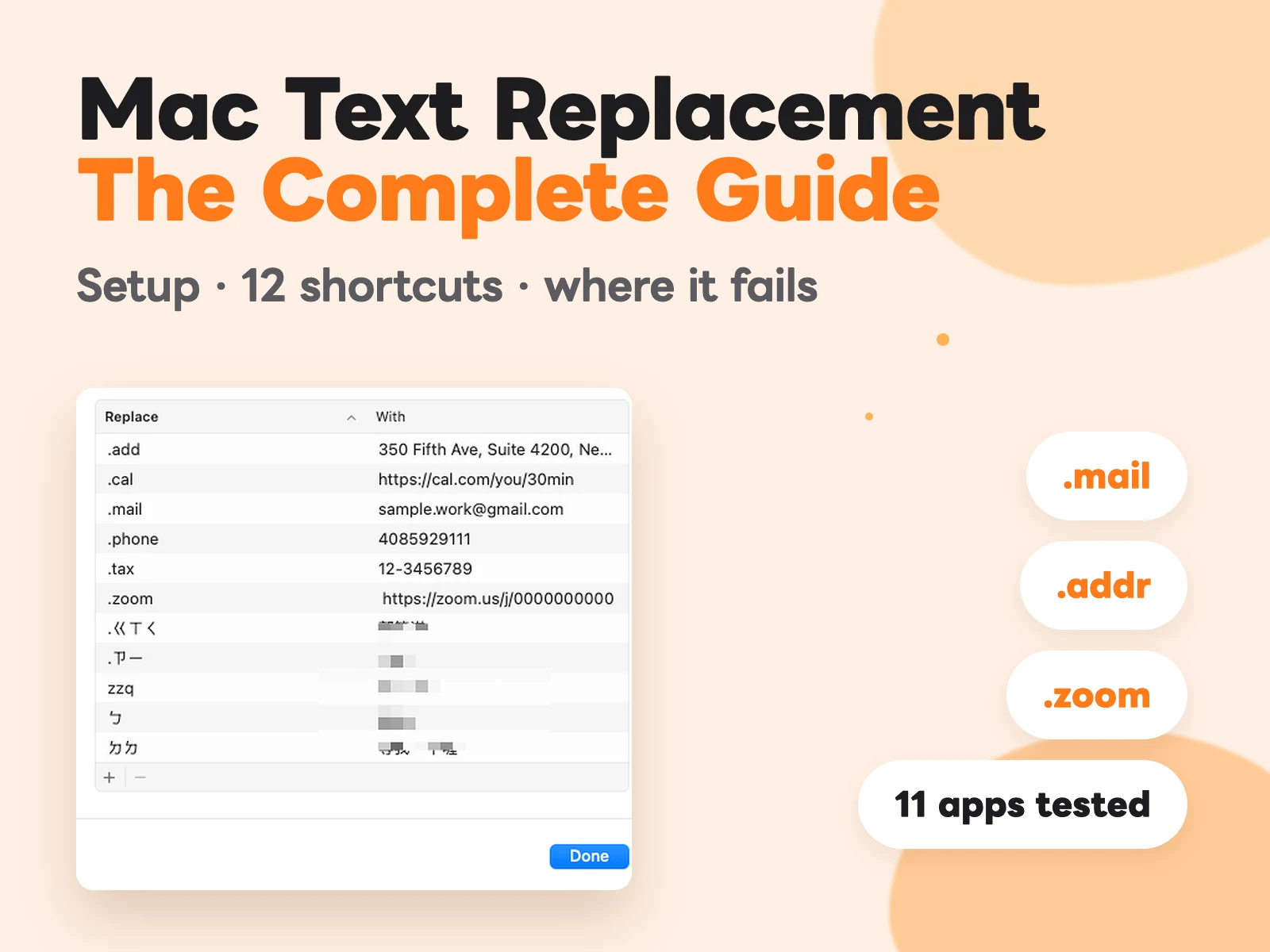
You define a pair:
- Replace — a few easy-to-type characters, e.g.
.addr - With — what you actually want typed, e.g.
350 Fifth Ave, Suite 4200, New York, NY 10118
Type .addr in a text field, hit space, and macOS swaps it out. Apple ships one by default so you can see the idea: omw → On my way!
Think of it as a text hotkey. ⌘C is the hotkey for copy. .addr is the hotkey for your address.
One thing to know before you touch anything, because it saves confusion later:
Your Mac’s list and your iPhone’s list are the same list. They sync through iCloud under your Apple ID. Add an entry on your Mac and it shows up on your iPhone and iPad, and vice versa.
That’s a feature, not a footnote. It means the ten minutes you spend on this pay off on every Apple device you own. It also means a shortcut that misfires will misfire everywhere, which is why the naming rules further down matter more than they look.
How to set it up on macOS
macOS Ventura and later
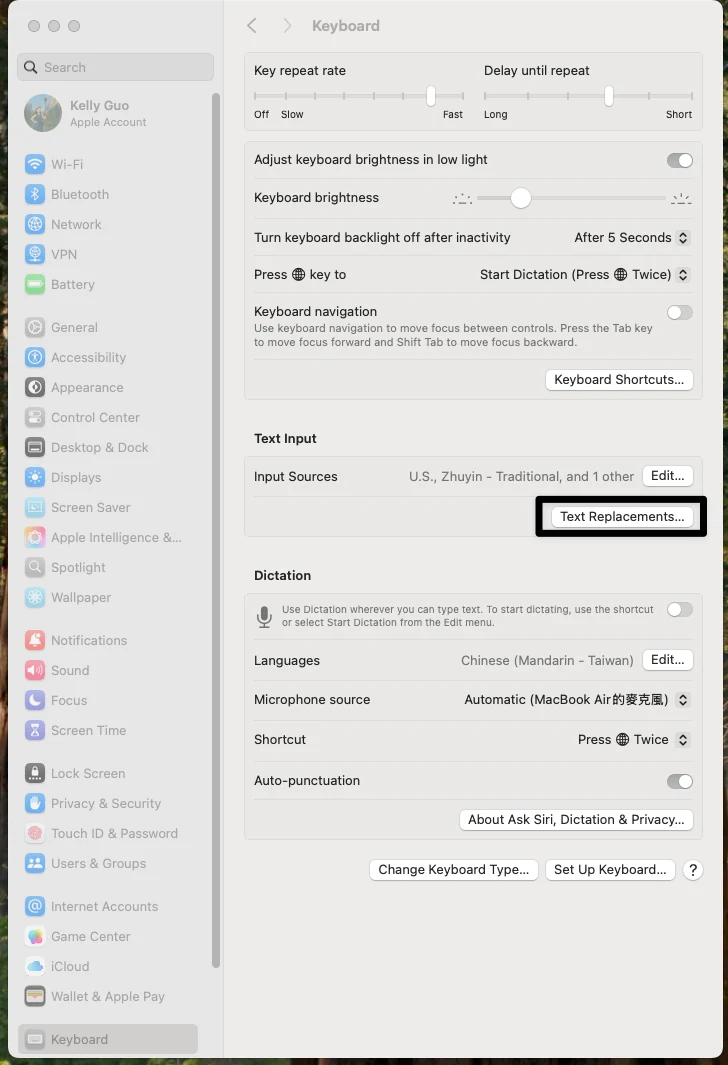
System Settings → Keyboard → Text Input → Text Replacements… → ”+” (bottom left)
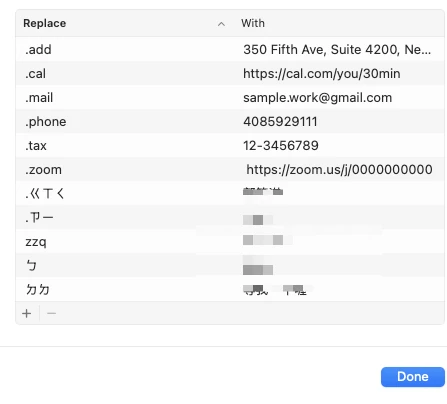
A sheet opens with two columns, Replace and With. Click +, type your trigger in the left column, press Tab, type the full text in the right column, then press Return. Click Done.
macOS Monterey and earlier
System Preferences → Keyboard → the Text tab
Same two columns, same + button. If a guide you’re reading shows this window, it was written before 2022 — the feature is unchanged, but the path isn’t.
Test it immediately
Before you add ten of them, add one and prove it works. Type your trigger into TextEdit or the Notes app, then press space.
That last part trips people up more than anything else: expansion fires on a word boundary, not on the last character. Type .addr and stop, and nothing happens. Type .addr and then a space, a period, or Return, and it expands.
How to pick triggers that never misfire
Two failure modes: it fires when you didn’t want it, or you can’t remember it when you do. Both are decided at naming time, and both are cheap to get right.
Start every trigger with the same punctuation character. . works well, so does , or ;;. Which one genuinely doesn’t matter. Using one consistently does:
| Content | Trigger |
|---|---|
| Email address | .mail |
| Phone number | .tel |
| Mailing address | .addr |
| EIN / tax ID | .tax |
| Recurring meeting link | .mtg |
Three reasons this earns its keep:
- It can’t fire by accident. A bare word like
addrwill eventually expand mid-sentence..addris a sequence you would essentially never type on purpose - You can guess your way back. You won’t remember all twenty. You will remember “mine all start with a dot,” and from there you can usually guess the rest
- You can tell yours apart later. When the list gets long, you can see at a glance which entries are yours and which came with the system
Two more rules worth 10 seconds each: triggers are case-sensitive (.Mail and .mail are different entries, so pick lowercase and stop thinking about it), and name it for the meaning, not the content (.bank, not .chase — six months from now the word in your head is “payment,” not your bank’s name).
There’s a longer version of this reasoning, plus the iPhone side of the setup, in our complete iPhone Text Replacement guide.
12 replacements worth setting up on a Mac
One hard limit decides what’s eligible, so it goes first:
⚠️ The “With” field is a single line. You can’t put a line break in it.
That isn’t a setting. It’s how the feature works. Email signatures, canned support replies, anything with paragraphs — physically cannot go in here. Everything below is single-line, fixed, and unchanging, which is exactly where Text Replacement is strongest.
That content doesn’t stop existing, of course. It ends up in a note you keep open in a second window, or in a card tool like CopyNow that puts it in the menu bar. What it can’t do is go in here, so it’s worth deciding early which half of your text lives where.
| # | Type | Example | Trigger |
|---|---|---|---|
| 1 | Email address | yourname@example.com | .mail |
| 2 | Work email | you@company.com | .wmail |
| 3 | Phone number | (212) 555-0147 | .tel |
| 4 | Mailing address | 350 Fifth Ave, Suite 4200, New York, NY 10118 | .addr |
| 5 | Company legal name | Example Holdings, Inc. | .co |
| 6 | EIN / tax ID | 12-3456789 | .tax |
| 7 | Personal meeting room | https://zoom.us/j/0000000000 | .zoom |
| 8 | Scheduling link | https://cal.com/you/30min | .cal |
| 9 | LinkedIn or portfolio URL | https://linkedin.com/in/you | .li |
| 10 | Support or intake form | https://example.com/support | .form |
| 11 | Payment terms line | Net 30. Late payments accrue 1.5% monthly. | .terms |
| 12 | Insurance member ID | XYZ123456789 | .ins |
A few notes from using these:
- #1 and #2 are not redundant. Most people have a personal address and a work one, and the wrong one in a form is a real cost
- #4 is the one you’ll feel most. Long, easy to typo, and needed at exactly the moment you’re least patient, which is a checkout page
- #7 and #8 pay off on repetition. Any URL you paste more than once a week belongs here
- #11 is the freelancer’s favorite. One line you send with every invoice, always worded identically
The Mac-only bonus: characters your keyboard doesn’t have
This one doesn’t apply on an iPhone, where the emoji keyboard is a tap away. On a Mac, typing an arrow or a check mark means opening the character viewer or remembering a modifier combination nobody remembers.
Text Replacement fixes that permanently:
| Character | Trigger |
|---|---|
→ | .ar |
✓ | .ck |
— (em dash) | .em |
° | .deg |
¯\_(ツ)_/¯ | .shrug |
Set the shrug one. You will use it.
What not to put in
Text Replacement will happily hold anything you type into it, which is precisely the problem. Anything in this list expands the moment someone types five characters on your unlocked Mac.
Receiving details, meeting links, addresses: fine. Full card numbers, account passwords, recovery codes: no. There is no lock on this list and no audit of who read it.
Why it stops working in some apps, and how to fix it
This is the part that sends people to Google, and most articles wave at it with “not all apps support it.” There are actually two separate causes, and one of them is a two-click fix.
Cause 1: the app turned it off (fixable)
Many Mac apps expose a per-app switch for this, and it’s easy to flip by accident:
With the app open: Edit → Substitutions → Text Replacement
If that item is unchecked, replacements won’t fire in that app no matter what your system settings say. Check it and it works again immediately. If Text Replacement works in Notes but not in one particular app, check this before anything else.
The same menu holds Smart Quotes and Smart Dashes, which is worth knowing for a different reason: if your Mac keeps turning "like this" into curly quotes inside code or a config file, that’s the same menu.
Cause 2: the app doesn’t use the system’s text field (not fixable)
Some apps draw their own text input from scratch instead of using the one macOS provides. Those apps never see your replacements, and there’s nothing you can set to change it. It’s a decision made by the app’s developers.
Which apps? Rather than repeat the usual hand-waving, here’s a list I sat down and tested.
What works and what doesn’t: 11 apps, tested
Tested on macOS Sequoia 15.7, one entry, typed by hand in each app:
| App | Text Replacement |
|---|---|
| Notes | ✅ Expands |
| ✅ Expands | |
| Messages | ✅ Expands |
| Safari, address bar | ✅ Expands |
| Google search box, in Chrome | ✅ Expands |
| Notion, in Chrome | ✅ Expands |
| Google Docs, in Chrome | ❌ Nothing |
| Figma canvas text, in Chrome | ❌ Nothing |
| VS Code | ❌ Nothing |
| Terminal | ❌ Nothing |
| Discord | ❌ Nothing |
Look at the middle of that list before you draw the obvious conclusion. Google’s search box, Notion, Google Docs and Figma were tested in the same browser, in the same session, on the same machine. Two of them expand. Two of them don’t.
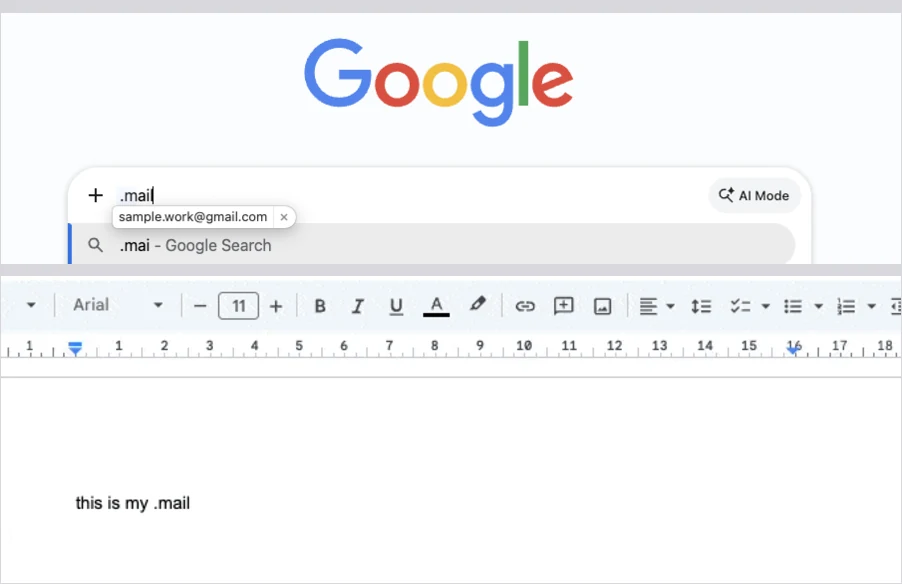
So the rule isn’t “native apps work, web apps don’t.” It’s narrower, and once you see it you can predict the answer for any app you use:
Text Replacement works wherever the app uses a real text field. It fails wherever the app draws its own.
Google’s search box and Notion type into the browser’s own input elements, so macOS can see the characters going in and swap them. Google Docs and Figma render text themselves onto a canvas — from the system’s point of view there’s no text field there at all, just a picture that looks like one. Nothing to hook into, nothing to replace.
The same explanation covers the rest of the failures. Code editors and terminals take over keystroke handling deliberately, because a shell or an editor can’t afford the system rewriting what you typed.
It’s also why “it works in Mail but not in my editor” isn’t a bug you can fix. Nothing is broken, and no setting will help. It’s a choice made inside the app.
There is a way around it, though, and it’s worth knowing before you give up on an app: what you can’t type your way into, you can still paste into. Every app in that second column takes a normal paste perfectly well. So for the tools where expansion will never fire, the answer isn’t a better shortcut — it’s keeping that text somewhere you can grab in one click, whether that’s a pinned note or a menu-bar card.
How to test any app in ten seconds
Rather than trust a list, test the apps you actually use:
- Add a throwaway entry: Replace
zzq, Withit works - Open the app you’re unsure about, click into a text field, type
zzqand press space - Expanded? You’re fine. Nothing? Check Edit → Substitutions first, and if there’s no such menu item, this app is Cause 2
- Delete the throwaway entry when you’re done
Two things Mac can do that iPhone can’t
1. You can back up your list
Nobody documents this, and it’s the answer to a question people ask constantly: how do I get my replacements out of here? There’s no Export button. But the data is readable, and one command will dump it to a file.
Open Terminal and run:
defaults export -g - | plutil -extract NSUserDictionaryReplacementItems xml1 -o ~/Desktop/text-replacements.plist -
That writes every entry to text-replacements.plist on your Desktop as plain XML, one block per entry with the trigger and the full text. You can open it in TextEdit and read it.
This is read-only and changes nothing — it’s worth doing before a migration, before a big cleanup, or just once a year so the list isn’t the only copy.
Two caveats, stated plainly:
- Apple doesn’t document this, so a future macOS release could change it. Verified working on macOS Sequoia
- There’s no reliable reverse command. Writing entries back this way fights with the process that syncs them to iCloud, and can leave you with duplicates or nothing at all. Treat this as a backup you’d re-enter by hand, not a restore.
For the curious: macOS keeps the live list in a database at ~/Library/KeyboardServices/TextReplacements.db. Don’t edit it. The Terminal command above is the safe way to read the same data.
2. Cleaning up is less painful
On an iPhone, deleting entries means swiping them away one at a time, which is why a fifty-entry list tends to stay a fifty-entry list forever.
On a Mac you’re working with a proper table: click a row, click the – button. Still one at a time in practice, but with a mouse and a list you can see, and that’s the difference between a cleanup you’ll actually do and one you won’t.
Do the cleanup on the Mac, then. It syncs back to the iPhone.
Troubleshooting
I typed the trigger and nothing happened
In order:
- Did you type a space or punctuation after it? Expansion needs a word boundary. Stopping right after the trigger won’t do it
- Check the case. Triggers are case-sensitive
- Check Edit → Substitutions → Text Replacement in that app
- Restart. It sounds like a brush-off, but the text service does occasionally get stuck, and a restart is the fastest fix
My iPhone entries aren’t on my Mac
- Confirm both devices are on the same Apple ID
- Confirm iCloud is on and has finished syncing, on both
- Give it time on a real connection. New entries need a network round trip, and the sync isn’t instant
- If it’s stuck, quitting System Settings on the Mac and the Settings app on the iPhone, then reopening, often nudges it
It works in Mail but not in my browser
Web text fields in Safari generally work. Web apps running inside another browser, or inside a desktop app that’s a browser underneath, often don’t. Use the ten-second test above to find out which of your tools are which, then stop fighting the ones that aren’t.
I want to delete all of them and start over
There’s no select-all. You click and delete row by row. This is exactly why the consistent-prefix rule pays off: at minimum you can tell your entries apart from everything else in the list.
Where the built-in feature runs out
Everything above is about using it well. This is what it can’t do, because nearly every heavy user hits the same four walls, and it’s less confusing when you see them coming.
You have to remember the trigger. There’s no browse step. You can’t stop mid-sentence, pull up a list, and pick something. You recall the trigger or you don’t get the content. There’s no practical cap on how many entries you can store, but there is a hard cap on how many you can remember, and for most people it’s somewhere in the teens.
There are no categories. A hundred entries is a flat list of a hundred entries. No folders, no tags, no search. You can’t ask for “everything related to invoicing,” or hide the work ones on a Saturday.
Multi-line content can’t go in at all. Not “works less well” — can’t be entered. Signatures, canned replies, anything with paragraphs.
Managing it is a chore. No search, no reordering, no way to pin what you use most, no indication of which entries you’ve touched since the day you made them. None of that is serious alone. Together they mean the list gets longer and messier and you stop maintaining it.
Text Replacement asks you to remember. That’s its design premise, and its ceiling.
So should you use something else?
Start with the case for not installing anything, because it’s the common one:
- You have around a dozen entries and you remember the triggers
- Everything you save is short and single-line: email, phone, address, tax ID, meeting link
- You don’t need categories — one list is readable end to end
If that’s you, Text Replacement is already the right answer. Go set up the 12 above and skip the rest of this page. You’ll get more out of that than out of any app.
It’s worth looking at something else when these start showing up:
| Symptom | What it means |
|---|---|
| What you want to save has line breaks | Past the feature’s hard limit |
| You can’t recall what you set up | Past your own memory, not the system’s |
| You want things split by context — work, clients, job hunt | There are no categories, and there never will be |
| You need to look before you choose which one to paste | You want a list, not a hotkey |
| You need the same set organized across Mac and iPhone | You need a real management interface |
Two or more of those and what you’re after isn’t a better hotkey. It’s a list you can see, click, and sort.
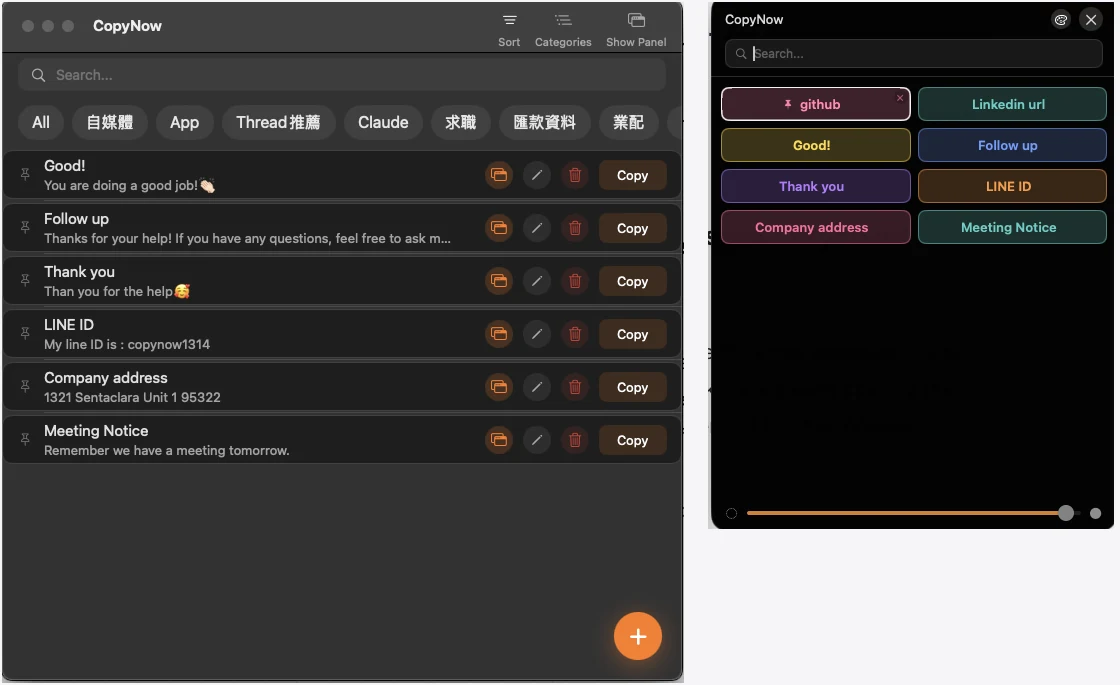
That’s what CopyNow does: your go-to text saved as cards, filed into categories, synced through iCloud, visible the moment you open it, copied with one click. On a Mac it sits in the menu bar, so the card you need is one click away without leaving the app you’re in. For how that compares to clipboard-history tools like Raycast and Paste, we put them side by side in the best clipboard managers for Mac.
The setup that actually works: use both
The honest conclusion isn’t “replace Text Replacement.” It’s that the two tools cover different content, and the split is obvious once you see it:
| Built-in Text Replacement | CopyNow | |
|---|---|---|
| Length | Short, single line | Long and multi-line both fine |
| Volume | A dozen or so, memorable | Hundreds, still findable |
| How you reach it | Type the trigger, fastest possible | Look at the list, click |
| Typical items | Email, phone, tax ID, meeting link | Signatures, canned replies, proposals, scripts |
| Costs you | Memory | A click |
Keep your dozen triggers for the strings you type without thinking. Put everything with a line break in it somewhere you can see.
Set up the 12 replacements above first. Ten minutes, and you feel it the same day. Then run the backup command once, so the list you just built isn’t living in exactly one place.
And when the day comes that what you want to save has paragraphs in it, or you can’t recall your own triggers, you’ll know what you’re actually looking for. CopyNow is free to start on Mac and iPhone when you get there.