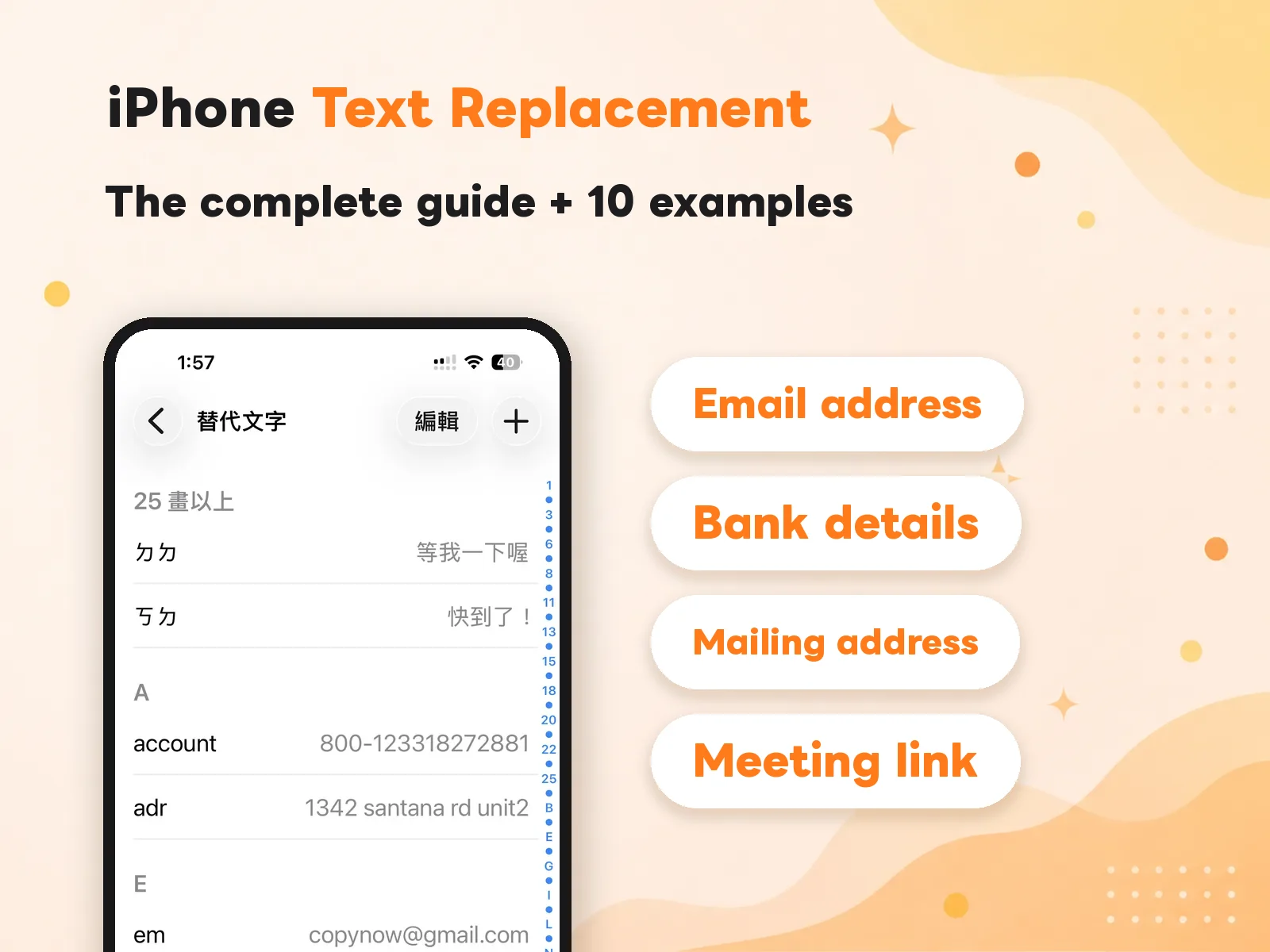
Your email address. Your mailing address. Your company’s tax number. That one meeting link you send every week.
How many times have you typed those this month?
Most people handle it the same way: open Notes, scroll, long-press, drag the selection handles, copy, switch back, paste. Thirty seconds a go. Five times a day. That’s an hour and a half a month.
iPhone has a built-in feature that solves part of this, and it’s free with nothing to install: Text Replacement.
This post covers setup from iPhone through Mac, gives you 10 shortcuts you can copy today, shows how to pick shortcuts that never fire by accident, and works through the common problems. Then — the part most guides skip — it’s honest about what happens once you have a lot of them.
What is Text Replacement?
Text Replacement is a built-in input feature on iOS, iPadOS, and macOS. You define a pair: a shortcut (a few easy-to-type characters) and a phrase (what you actually want typed). Type the shortcut in any text field and the system swaps it for the full phrase.
Apple ships one by default: omw → On my way!
Think of it as a text hotkey. ⌘C is the hotkey for copy; .mail is the hotkey for your email address.
It has some genuine advantages worth stating plainly:
- Built in and free. Nothing to install, no account to create
- Works system-wide. Mail, Slack, Safari, Notes, any app with a text field
- Follows your Apple ID. Set it on iPhone and it’s usually there on iPad and Mac
- No ads, no subscription, and it can’t be pulled from the App Store
If all you need is a handful of short fixed strings, Text Replacement is probably the highest-return setting on your iPhone. Five minutes to set up, and you get it back every day after.
So why do people complain about it? Section six. First, let’s get you good at it.
How to set it up: iPhone, iPad, Mac
iPhone / iPad
Settings → General → Keyboard → Text Replacement → ”+” (top right)
You’ll see two fields:
- Phrase: what you want typed, e.g.
350 Fifth Avenue, Suite 4200, New York, NY 10118 - Shortcut: what triggers it, e.g.
.addr
Save, and it’s live. Go to any text field, type .addr, then a space or punctuation, and it expands.
Mac
System Settings → Keyboard → Text Input → “Text Replacements” → ”+” (bottom left)
The Mac list and the iPhone list are the same list (under the same Apple ID), so it doesn’t matter where you add an entry.
Mac has a few wrinkles this post doesn’t cover — the per-app switch that silently turns expansion off, and a way to back your whole list up from Terminal. Those are in the Mac Text Replacement guide.
One rule that decides whether you’ll still be using this in six months
Almost no guide mentions this, and it’s the difference between a system you keep and one you abandon.
Use a consistent prefix. Start every shortcut of yours with the same character — . or , works well:
| Content | Suggested shortcut |
|---|---|
| Email address | .mail |
| Phone number | .tel |
| Mailing address | .addr |
| Company tax number | .tax |
| Payment details | .bank |
The next section goes deeper on why this matters and how to choose the rest.
How to pick shortcuts that never misfire
The two ways Text Replacement goes wrong are it fires when you didn’t want it to and you can’t remember it when you do. Both are solved at naming time.
1. Never use a bare word
If you set addr with no prefix, it will eventually expand in the middle of a normal sentence. Any string that could plausibly appear in real writing is a landmine — omw, ty, brb, eta all show up in actual messages.
A punctuation prefix fixes this almost completely, because .addr is a sequence you’d essentially never type by accident.
2. Pick the prefix once and never mix
. or , or ;; — it genuinely doesn’t matter which. What matters is that all of yours use the same one, for three reasons:
- You can’t misfire it. One consistent, deliberate prefix
- You can guess your way back. You won’t remember all twenty. You will remember “mine all start with a dot,” and from there you can usually guess
- You can audit later. When you want to clean house, you can tell your entries apart from Apple’s defaults and anything a colleague set up on a shared device
3. Name it for the meaning, not the content
Use .bank, not .chase. Six months from now the word in your head is “payment,” not the name of your bank.
The same logic applies to near-duplicates. If you have two phone formats, .tel and .tel2 is worse than .tel and .teldash — the second pair tells you which is which without trying both.
4. Watch the case
Shortcuts are case-sensitive. .Mail and .mail are different entries. Pick lowercase for everything and stop thinking about it.
5. Test each one immediately
After you save an entry, type it once in Notes. Thirty seconds of testing catches the two mistakes that are otherwise invisible: a typo in the shortcut, and a collision with something you already set.
10 text replacements worth setting up
There’s a limit you need to know before you start, because it decides what’s eligible:
⚠️ The “Phrase” field is a single line. You cannot enter a line break.
That isn’t a setting you can change; it’s how the feature works. So anything with line breaks in it — an email signature, a canned support reply, a multi-line address block — physically cannot go in here.
Which is why all 10 below are single-line, fixed, and unchanging content. That’s exactly where Text Replacement is strongest:
| # | Type | Example phrase | Shortcut |
|---|---|---|---|
| 1 | Email address | yourname@example.com | .mail |
| 2 | Phone number | 2125550147 | .tel |
| 3 | Phone number (formatted) | (212) 555-0147 | .teldash |
| 4 | Mailing address | 350 Fifth Ave, Suite 4200, New York, NY 10118 | .addr |
| 5 | Company legal name | Example Holdings, Inc. | .co |
| 6 | Tax / VAT / EIN number | 12-3456789 | .tax |
| 7 | Recurring meeting link | https://meet.example.com/standup | .mtg |
| 8 | Portfolio or personal site | https://example.com/work | .site |
| 9 | Support or booking form URL | https://example.com/support | .form |
| 10 | Home Wi-Fi password | mywifipassword | .wifi |
A few notes on using these:
- #3 isn’t redundant. Some forms accept
2125550147, others want(212) 555-0147. Two entries beat reformatting by hand every time - #4 is the one you’ll feel most. Long, easy to typo, and needed at exactly the moment you’re least patient — a checkout page
- #7 and #9 pay off on repetition. Any URL you paste more than once a week belongs here
- #10 depends on your situation. Convenient if nobody else handles your phone; skip it if people borrow it
On payment details: Text Replacement can hold them, but remember that anything which expands as you type sits within easy reach of anyone holding your unlocked phone. Receiving details are fine. Full card numbers and banking passwords are not.
If what you actually need to send is a multi-line block — bank, routing number, account name, amount — that’s outside what Text Replacement can do. See how to build a canned message set instead.
Troubleshooting
I typed the shortcut and nothing happened
In order:
- Did you type a space or punctuation after it? Expansion usually needs a word boundary. Stopping right after the shortcut won’t trigger it
- Check the case. Shortcuts are case-sensitive
- You may be in a field that doesn’t support it. Password fields and apps with custom text engines (some games, some banking apps) don’t apply system Text Replacement
- Restart. It sounds like a brush-off, but the service does occasionally get stuck, and a restart is the fastest fix
It disappeared after I got a new phone
Text Replacement rides on iCloud. Check:
- Both devices are on the same Apple ID
- iCloud is on and has finished syncing
- Sometimes it isn’t gone, just not down yet — get on Wi-Fi and give it a few minutes
It doesn’t work in a particular app
Usually not your setup. Some apps use their own text input components and never see the system’s replacements. There’s no workaround; it’s an implementation choice in that app.
I want to delete a lot of them, but it’s one at a time
Worth stating plainly, because people assume they’ve missed a button:
Neither iPhone nor Mac offers select-all or batch delete for Text Replacement. You swipe them away one by one.
So if you’ve built up fifty entries and want to start over, the only route is doing it by hand. This is also why the consistent-prefix rule earns its keep — at minimum you can tell which ones are yours.
I can’t find what I set up before
The list lives at Settings → General → Keyboard → Text Replacement, and you can scroll it. But there’s no search, no folders, and no usage count — you read the whole thing top to bottom. Fine at a dozen entries. Noticeably not fine past that.
The four ceilings you’ll hit
The first six sections were about using it well. This one is about what it can’t do — not to run it down, but because nearly every heavy user hits these four eventually, and it’s less confusing if you see them coming.
Ceiling 1: You have to remember the shortcut
This is the root one. Text Replacement has no browse step — you can’t stop mid-sentence, pull up a list, and pick something.
The way it works is: you recall the shortcut first, or you don’t get the content at all.
So the real ceiling isn’t in the system, it’s in you. There’s no obvious cap on how many entries you can store; you could put in a hundred. But how many can you remember?
For most people the answer is somewhere in the teens. Past that, the extras become entries that exist but never surface — which is the same as not having saved them.
Text Replacement asks you to remember. That’s its design premise, and its ceiling.
Ceiling 2: No categories
A hundred entries is a flat list of a hundred entries. No folders, no tags, no colors, no search.
You can’t say “show me everything related to invoicing,” or “hide the work ones, I’m on vacation.” Finding something means scrolling from the top.
At a dozen entries this is a non-issue. Past a certain point, finding one takes longer than retyping it.
Ceiling 3: Multi-line content can’t go in
Mentioned above, but it deserves restating here because it’s a hard limit: the Phrase field is one line.
Which puts all of this out of scope:
- Email signatures (name, title, phone, company — normally on separate lines)
- Support canned replies and sales openers
- Order confirmations and shipping notices
- Anything that needs paragraphs, line breaks, or white space
This isn’t “works less well.” It’s can’t be entered. If that’s the kind of content you’re dealing with, Text Replacement was never the tool for the job.
Ceiling 4: Managing it is a chore
Putting the above together:
- No batch delete — one swipe at a time
- No reordering, and no way to pin the ones you use most
- No search
- No indication of which entries you actually use and which have sat untouched since the day you made them
None of these is serious on its own. Together they mean the list gets longer and messier, and you never feel like tidying it. And one day you notice you’ve gone back to opening Notes.
When should you switch tools?
Start with the opposite of the conclusion — these are the cases where you should just keep using the built-in one and not install anything:
- You have around ten entries and you remember all the shortcuts
- Everything you save is short and single-line: email, phone, address, tax number
- You don’t need categories — one list is readable end to end
- You simply don’t want another app on your phone
If that’s you, Text Replacement is already the right answer. You can stop reading here; go set up the 10 examples above. You’ll get more out of that than out of installing anything.
So when is it worth switching? When these start showing up:
| Symptom | What it means |
|---|---|
| What you want to save has line breaks (signatures, canned replies) | You’re past the feature’s physical limit |
| You regularly can’t recall what you set up | Ceiling 1 — you’ve exceeded your own memory |
| You want things split by context (work / clients / job hunt) | Ceiling 2 |
| You need to look before you choose which one to paste | What you want is a list, not a hotkey |
| You need one set organized consistently across iPhone and Mac | You need a real management interface |
Two or more of those and what you’re after isn’t a better hotkey. It’s a list you can see, tap, and sort.
Which is what CopyNow does: your go-to text saved as cards, filed into categories, visible the moment you open it, copied with one tap. With the CopyNow custom keyboard you can paste inside any app without switching screens. On Mac, our comparison of clipboard tools has a fuller side-by-side.
The difference in one line:
Text Replacement asks you to remember. CopyNow lets you see.
The best setup: let them divide the work
It’s easy to read this as “so replace Text Replacement,” but that isn’t the conclusion.
In practice the smoothest setup is keeping both, each covering what it’s good at:
| Built-in Text Replacement | CopyNow | |
|---|---|---|
| Length | Short, single line | Long and multi-line both fine |
| Volume | A dozen or so, memorable | Hundreds, still findable |
| How you reach it | Type the shortcut — fastest | Look at the list, tap |
| Typical items | Email, phone, tax number, meeting link | Signatures, canned replies, shipping notices |
One thing to know up front, or you’ll think something is broken:
While the CopyNow keyboard is active, Text Replacement doesn’t fire.
The reason is simple: the CopyNow keyboard has no letter keys, because it isn’t for typing — it’s for tapping cards. No typing means no shortcut to trigger.
So the correct mental model is: they live on different keyboards. They never run at the same time, and they never interfere with each other.
In daily use it looks like this:
- You type on the system keyboard as usual.
.mail,.tel,.addrexpand exactly as before - When you need a full canned message, you switch to the CopyNow keyboard and tap a card
- You switch back and keep typing
You won’t notice yourself doing it. What you’ll notice is not spending thirty seconds on “open app, find it, copy, switch back” every single time.
Go set up those 10 replacements first. Five minutes, and you feel it immediately. When the day comes that what you want to save has line breaks in it, or you can’t recall your own shortcuts, come back to section seven.
You’ll know what you need by then.
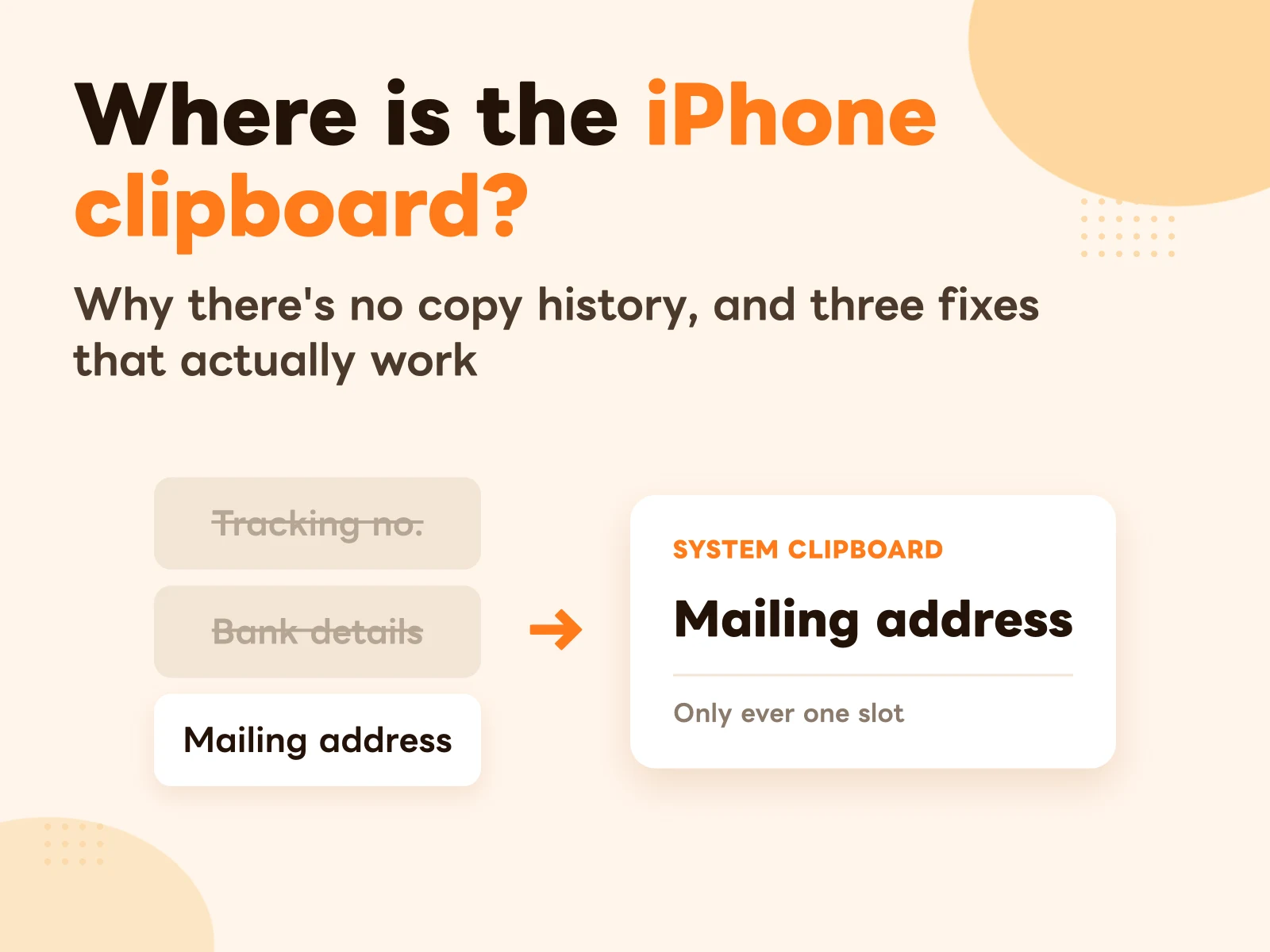
One related note: Text Replacement covers fixed text you can type from memory, which is a different job from the clipboard. Why iPhone shows you no copy history, and what to do instead, is in iPhone clipboard history.