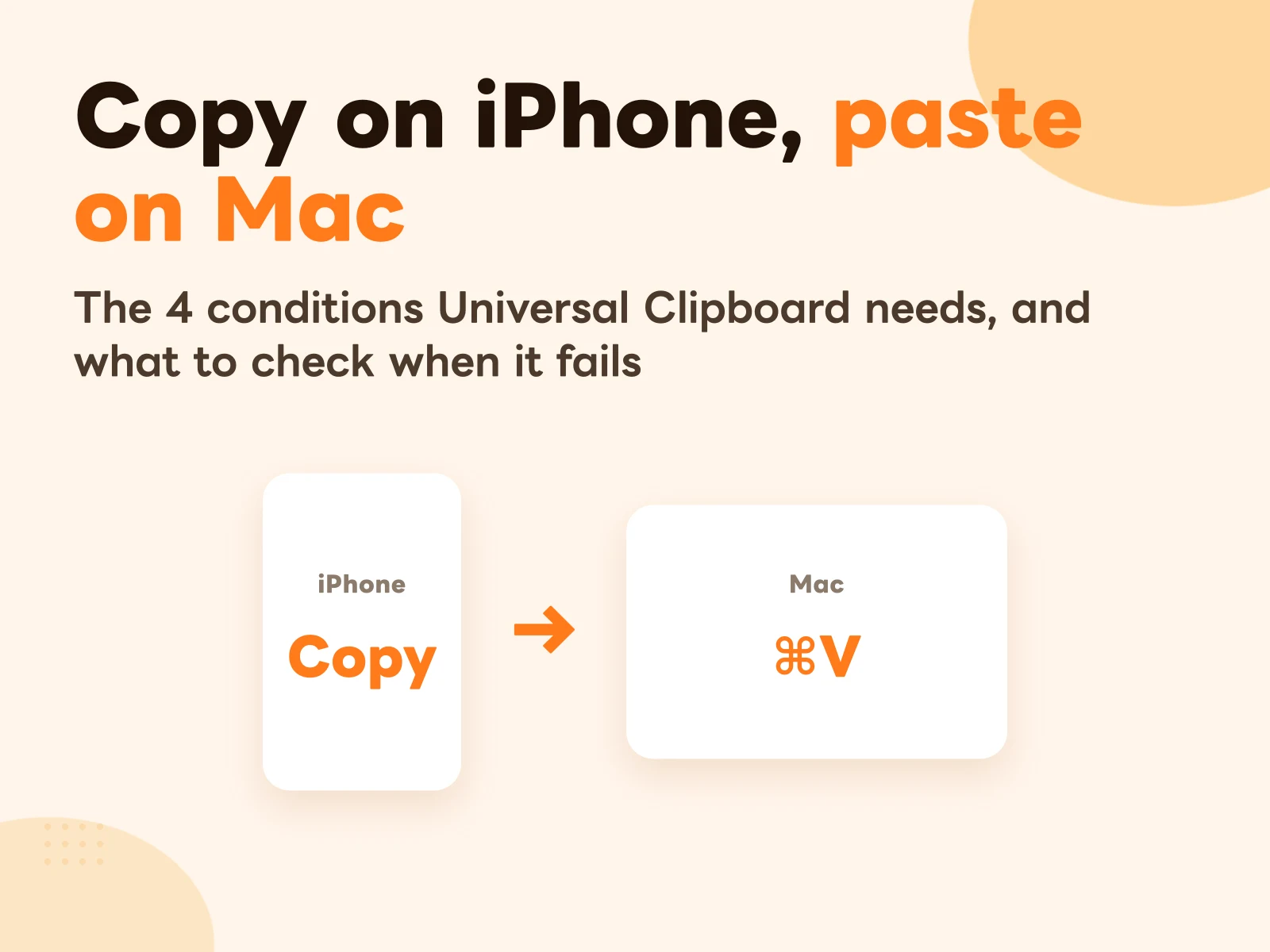
The short answer: copy on your iPhone the way you always do, walk over to your Mac and press ⌘V. That’s it. No texting it to yourself, no emailing, no AirDrop.
The feature is called Universal Clipboard. It’s built into Apple devices; there’s nothing to install. It works the other way too: ⌘C on the Mac, long-press and paste on the iPhone.
The catch is that four conditions have to be true at the same time. Almost every “it won’t paste” problem comes down to one of them.
The 4 conditions Universal Clipboard needs
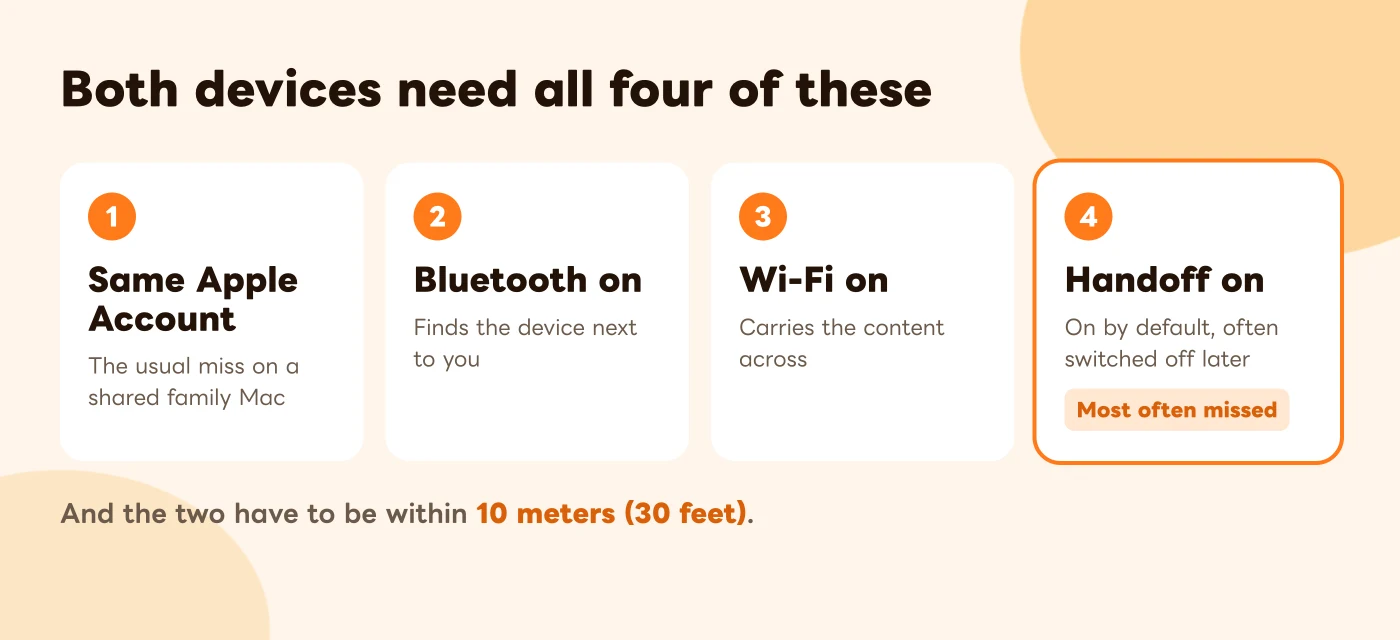
According to Apple’s support article, both devices need to be:
- Signed in with the same Apple Account
- Bluetooth on
- Wi-Fi on (they don’t need to be on the same network, but Wi-Fi has to be turned on)
- Handoff on
And the two devices need to be near each other; Apple says within 10 meters (30 feet).
Most people already have the first three on. The one that actually gets missed is Handoff. It’s on by default, but plenty of people switch it off during some settings cleanup and forget about it.
Turning on Handoff on iPhone
Settings → General → AirPlay & Continuity → turn on Handoff
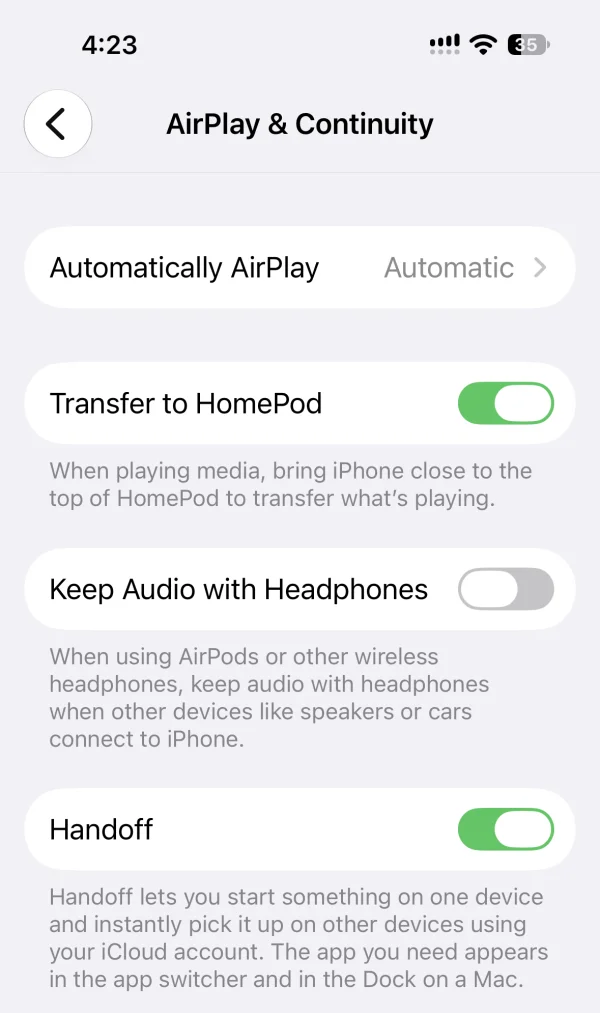
On older iOS versions the page is called “AirPlay & Handoff”; same place.
Turning on Handoff on Mac
Apple menu → System Settings → General → AirDrop & Handoff → turn on “Allow Handoff between this Mac and your iCloud devices”
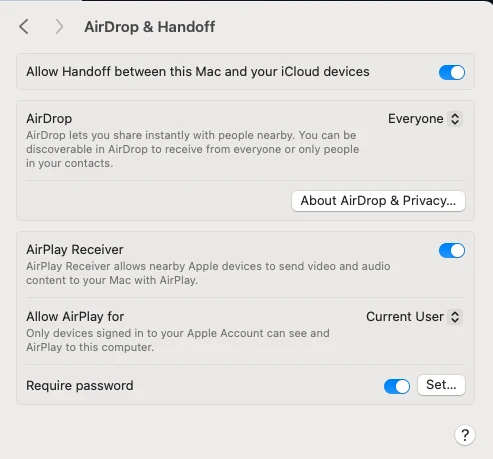
Before macOS Ventura, it’s under System Preferences → General: the checkbox near the bottom.
How to use it
Once it’s set up, it works exactly like normal copy and paste:
- iPhone → Mac: select text on the iPhone, tap Copy, press ⌘V on the Mac
- Mac → iPhone: ⌘C on the Mac, long-press a text field on the iPhone and tap Paste
- iPhone → iPad and iPad → Mac work the same way, as long as all four conditions are met
Text, images and photos all work. Between two Macs you can even copy files across.
If there’s a second or two of delay when you paste, and a small progress indicator shows up on the Mac, that’s the content coming over from the other device. Completely normal.
When it won’t paste, check in this order
This is sorted by most common and easiest to fix. Try pasting after each step; once it works, stop:
- Confirm it’s the same Apple Account. On iPhone, tap your name at the top of Settings; on Mac, it’s at the top of the System Settings sidebar. If someone else in the house shares the computer, this is the usual culprit.
- Turn Handoff off and back on, on both devices. Same paths as above. This fixes more cases than anything else.
- Turn Bluetooth and Wi-Fi off and back on. Being on but stuck is more common than you’d think.
- Bring the two devices close together and unlock both. A locked iPhone or a sleeping Mac often won’t connect.
- Restart both devices.
- Update the software. This is Apple’s own first suggestion; a big version gap between the two can cause problems.
- Handoff is on and it still fails? Check whether clipboard sharing is turned off on the Mac. It takes Terminal; see the next section.
- Still not working? Sign out of your Apple Account and back in. This affects syncing for other iCloud data too, so it goes last.
There’s also one case that isn’t a settings problem at all: you waited too long after copying. More on that below.
Handoff is on but paste still fails: clipboard sharing may be off
This one I hit myself. Handoff was on for both devices and working normally. But text copied on the iPhone just wouldn’t paste on the Mac.
The cause was a switch that doesn’t appear anywhere in System Settings: it controls whether the clipboard is shared across devices. On my Mac it was set to off, so everything else in Handoff worked and only the clipboard didn’t.
To check, open Terminal on the Mac (Applications → Utilities, or search Spotlight), paste this line and press Return. It only reads the value and changes nothing:
defaults read com.apple.coreservices.useractivityd ClipboardSharingEnabled
What the result means:
- 0: clipboard sharing is turned off. That’s what my Mac showed, so keep going
- 1: it’s on, so the problem is somewhere else; go back to the checklist above
- does not exist: nobody has ever set this value by hand. That doesn’t mean the feature is off, and it’s usually not the cause
If you got 0, paste these two lines in order. The first turns clipboard sharing back on, the second restarts the background service behind Handoff:
defaults write com.apple.coreservices.useractivityd ClipboardSharingEnabled -bool true
killall useractivityd
Run the first check again; this time it should return 1. Wait a few seconds, copy some fresh text on the iPhone, and press ⌘V in Notes on the Mac. Test the other direction too.

These lines change only this one setting and restart one background service. They don’t delete any files. If it already says 1 and still won’t paste, restart the Mac and try again.
Three limits Apple doesn’t spell out
Universal Clipboard is genuinely useful, but it has three ceilings. Knowing them makes it obvious when to use it and when to reach for something else.
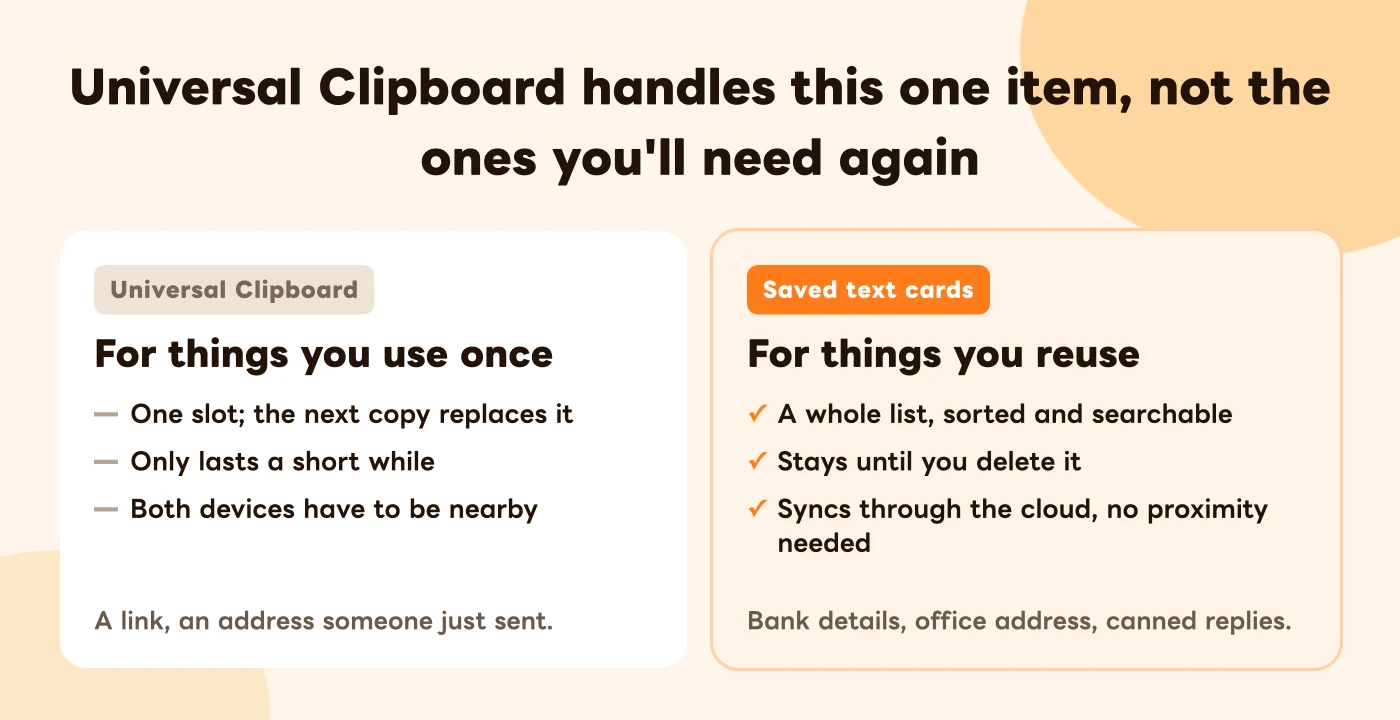
1. It has one slot
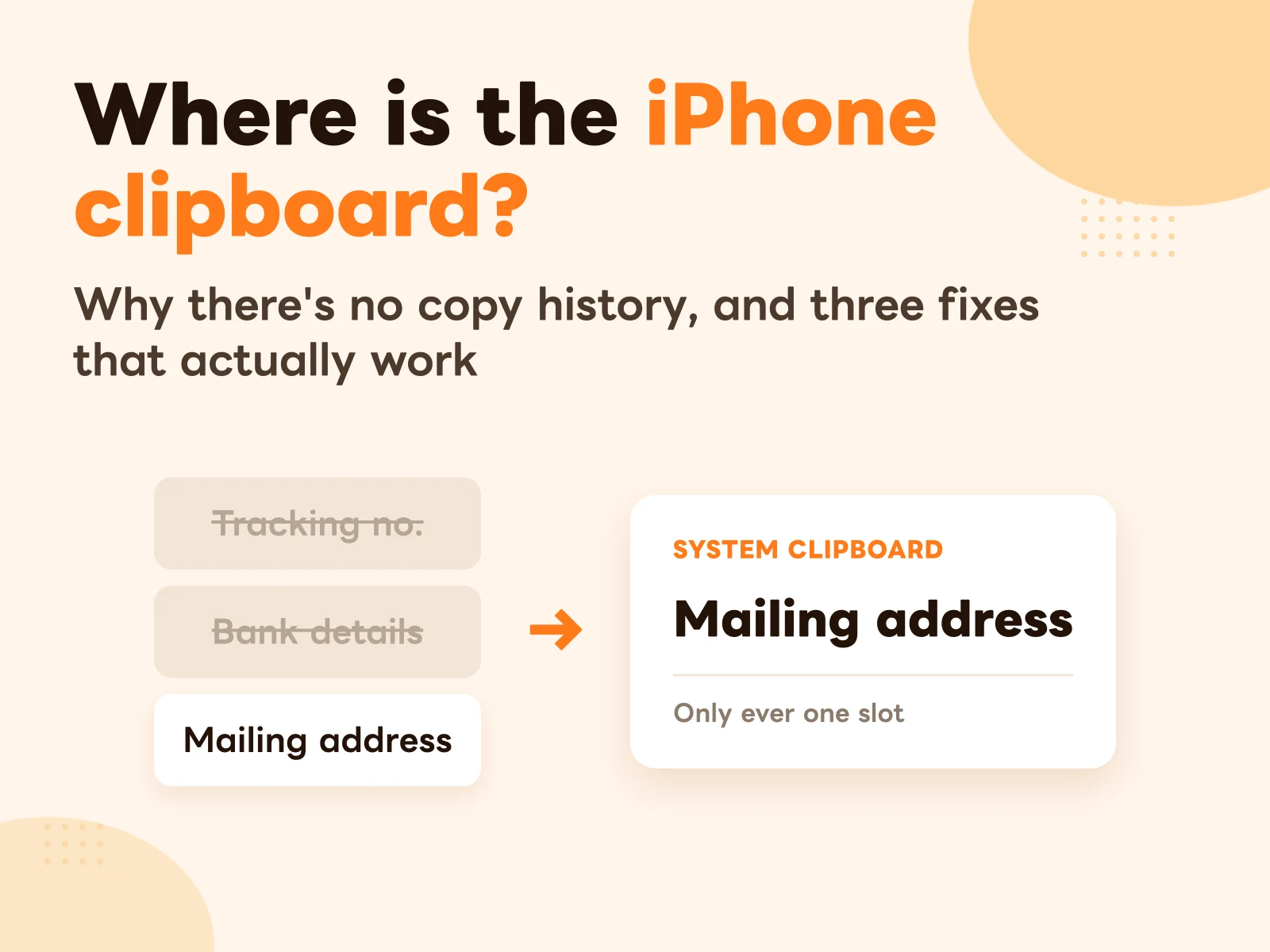
The iPhone clipboard only ever holds one item, and Universal Clipboard just lets that one slot travel between devices. Copy A on your iPhone, then copy B, and the Mac can only paste B. A is gone, with nowhere to get it back from.
Where is the clipboard on iPhone explains why iOS deliberately has no clipboard history.
2. It only lasts a short while
Apple’s wording is that the content stays on the other device’s clipboard “briefly”, or until you copy something else on either device. It doesn’t say whether that’s seconds or minutes.
In practice: copy, then go paste right away. Stop to answer a message or grab a coffee, and what pastes on your Mac may be something you copied earlier on the Mac itself.
3. Both devices have to be nearby
It runs on a short-range Bluetooth and Wi-Fi connection, not the cloud. If your iPhone is at home and you’re at the office on your Mac, nothing comes across.
Windows PCs and Android phones aren’t supported either; it only works between Apple devices.
Your Mac actually has a clipboard history
If your Mac is on macOS Tahoe 26 or later, Spotlight has clipboard history built in:
Press ⌘-Space to open Spotlight → press ⌘-4, or click the Clipboard button to the right of the search field
The first time, it asks whether to allow results from the Clipboard; click Allow. After that you can search things you’ve copied and copy them again. Apple’s guide has the details.
That fills part of the one-slot gap, but only on the Mac; the iPhone still has nothing like it. To compare other clipboard tools for Mac, see the best copy and paste tools for Mac.
When to use something else
Split whatever you’re moving from iPhone to Mac into two kinds, and the answer is obvious:
Things you’ll use once (a link, an address someone just sent, a screenshot): Universal Clipboard is the fastest option there is. For long content or lots of photos, use AirDrop.
Things you’ll keep using (bank details, your office address, a tax ID, canned support replies, an email signature): stop copying them over from your iPhone every time. The problem with these isn’t how to transfer them. It’s that you shouldn’t have to go find them again every time in the first place.
That’s exactly what CopyNow does: your frequently used text lives as cards, synced across iPhone, iPad and Mac through your own iCloud. Because it syncs through the cloud, none of the three limits above apply:
- Not one slot but a whole list, with categories and search
- Nothing expires; once saved, it stays
- No need for the devices to be near each other; a card saved on your iPhone opens just the same on your Mac at the office
The Mac app lives in the menu bar, so one click copies. On iPhone there’s a custom keyboard too, so you can paste inside Messages or Gmail without switching apps. For how sync works and what to check when it doesn’t, see CopyNow sync across devices.
FAQ
Does Universal Clipboard cost anything, or need an app?
No. It’s built into Apple devices; as long as the four conditions above are met, it works.
Can I turn it off? I don’t want what I copy on my iPhone showing up on my Mac.
Yes: turn off Handoff on one of the devices. Note that Handoff controls other features too, such as picking up on your Mac a web page you were reading on your iPhone, and those go off with it.
Can I copy on iPhone and paste on a Windows PC?
No. Universal Clipboard only works between Apple devices.
If I copy a password, does it go to my other devices?
Yes. When the conditions are met, anything you copy syncs over. Copying any other word afterwards to overwrite it is the simplest fix.
Why is pasting sometimes slow?
The content is transferred from the other device at the moment you paste. It’s more noticeable with images or long text, and the closer the two devices are, the faster it is.